Start and run a session
From the session settings to the End button: how to run a whole session, from the first QR code to the end screen.
Updated on 6 November 2026
Before you start
The Start a session button becomes active as soon as at least one activity is activated (the yellow switch on its card). Just to its right, the small gear icon opens the session settings: participant reactions, and the optional email collection offered to anonymous participants at the end of the session. Set them before you start, they apply to the whole session.
Start the session
When the session starts, the screen shows the QR code and the short code: this is your welcome screen, keep it projected while the room joins. The counter at the bottom right tracks arrivals live.
Run it with the session bar
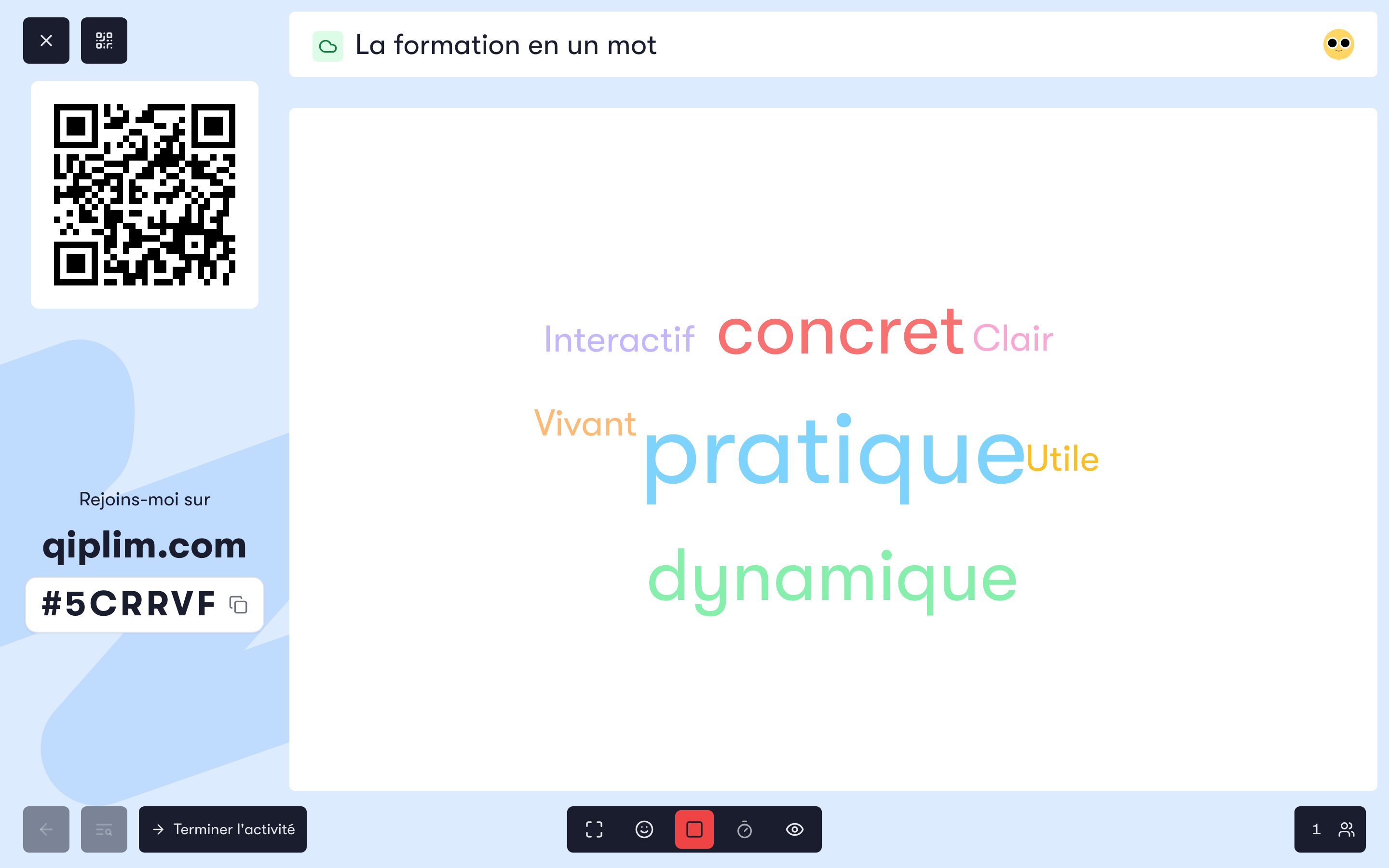
Everything is driven from the bar at the bottom of the screen:
The main button sets the pace.
It is the most important button of the session. It sits in the centre of the bar, between the reactions and the timer, and changes state as you move forward:
Start opens the activity on the screen and on every phone.
End the activity closes the answers. The red square stays on screen as long as the activity is running.
Next activity appears once the activity is closed and moves on. On the last activity, it becomes End the session.
The same button also appears in full text on the left of the bar, with its current label: it is the same click.
On the left, navigation.
Previous activity and Open the outline let you go back or jump to a specific activity. Both are deliberately disabled while an activity is running: end it first.
Around it, the presenting tools.
Full screen , reactions , timer , hide results : each icon turns on with a click, without interrupting the current activity.
Finish cleanly
After the last activity, End the session switches everyone to the end screen: a summary and exports for you, a personal summary for each participant. The results remain available afterwards from your dashboard.
Frequently asked questions